

jiopc converts tv into computer for free it is a cheap and budget option use jiofiber set top box- Jio gave another big gift, now TV will become computer, not a single penny will be spent
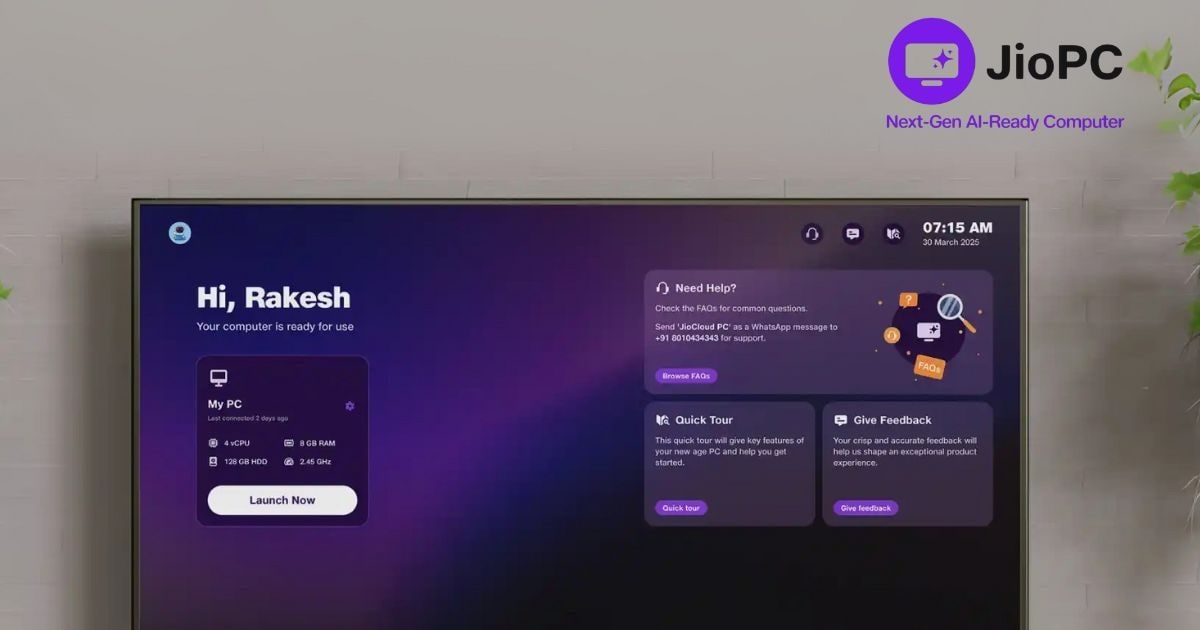
Reliance Jio has launched a new virtual desktop service JioPC in India. With the help of this special service, users can convert their TV into a computer. The special thing is that for this they will not need any expensive system. Let us know what this service is and what are its benefits…
JioPC is a cloud based system, that is, your data and apps work through the internet. By adding keyboard and mouse to it, you can create documents, send emails or use the internet. LibreOffice comes pre-installed in it and can be used through Microsoft Office browser.
Currently, JioPC does not support external devices like cameras and printers and this service is currently available only on Jio set-top boxes. It would not be wrong to say that this will greatly benefit those students who have to study online. Or such people will also take advantage of it, who have to work on basic computers at home like creating documents, browsing or emailing. For those who cannot buy a new computer, it can prove to be a budget-friendly option.
No worries about crashing…
JioPC is completely based on cloud, so there will be no tension of any hardware failure, software update or data loss. This means that you will not have to face problems like hard disk failure, system crash or file deletion.
How to use it?
It is very easy to set up JioPC, you can start the free trial of this service like this…
Step 1: Open JioPC app
First of all, turn on the TV connected to your Jio set top box. Then go to the Apps section and click on the JioPC icon.
Step 2: Connect keyboard and mouse
Plug your keyboard and mouse into the USB port of the set top box or connect it via Bluetooth.
Step 3: Set up your account
Your registered mobile number and details will be pre-filled. Click on Continue.
Step 4: Now click on Launch Now and start using.
Note- Let us tell you that for now this service is in free trial mode, and to use it, you will have to register your name in the waitlist.